Open to product design rolesTel Aviv-Yafo · --:-- local
I design interfaces for moments when every second counts.
I'm Ofek, a Product Designer with 7 years of experience designing mission-critical systems for the Israeli Air Force: command & control, mission planning and real-time monitoring. I work side by side with product managers and engineers from discovery to delivery, and my CS background helps the designs actually ship.
Short description of the second case study goes here.
Coming soonCase study 03
Case study title
Short description of the third case study goes here.
About
Rigor from the control room, care for the person in the chair.
For seven years I designed the systems Israeli Air Force operators rely on around the clock. That work taught me to sit through a night shift before drawing a single screen, and to measure a design by fewer errors under pressure, not by how it looks in a review.
I hold a B.Sc. in Computer Science and write HTML, CSS and JavaScript, so engineers and I speak the same language. I'm now looking to bring that rigor to a product team building meaningful, user-centered products.
Away from the screen: drums, scuba diving, woodworking, running and chess.
Experience
2021–2025
Product Designer, Core Operational System
Consultant · Israeli Air Force
Owned end-to-end design of a mission-critical system with the PM and a dedicated dev team.
Cut key task time by 50% by redesigning core workflows from research and usability tests with ~50 operators.
Reduced operator errors in real-time scenarios through clearer hierarchy, alerting and status visualization.
Designed real-time monitoring dashboards that turn dense data into action.
2018–2021
Product Designer, Multi-System Portfolio
Israeli Air Force
Designed command & control, mission planning and maintenance systems in parallel, from requirements to delivery.
Led a shared design system adopted by 4 development teams.
UX consultant to product managers and dev teams across IAF units; mentored new designers and taught UX methodology.
Skills & education
Design
Product design, user research, usability testing, interaction design, information architecture, prototyping, design systems, data-dense UI & dashboards
Flare: from hard-coded alerts to alerts operators build themselves
Flare is a system for managing alerts and automated actions. It is one of seven operational systems that work in sync to protect Israel's airspace, and one of the systems I planned and designed in my role.
Role
Product Designer, end to end
Team
Product manager, development team
Users
Shift operators, 24/7, 12-hour shifts
Scope
Research, rule builder, scheduling, live control panel
Background
Watching the sky for 12 hours straight
Starlight is a real-time system for protecting the airspace. It is staffed 24/7 and built around a map, where each entity represents an aircraft and carries its details.
Part of the operator's job is to spot anomalies and suspicious behavior in the airspace in real time. That takes full concentration across 12-hour shifts.
To help operators cope with the system's cognitive load, the team decided to try alerts. The basic alerts, mostly hard-coded, helped a little, but they needed frequent changes and every change took up valuable development time.
That is where the idea came from: a subsystem that lets operators create their own custom alerts.
How it started
From code-based alerts to custom alerts
Through user research, meetings and silent observation during shifts, I found that a lot of time and effort went into tracking every aircraft to catch deviations and events. That load made it hard for the shift to focus on actually handling those events.
Operators were spending their attention on finding the events, and had too little left for handling them.
From there I mapped four needs:
Automatic anomaly detection
Detect anomalies and unusual behavior in the airspace automatically and alert the operator. For example, alert when an Airbus A380 is in the sky.
Fixed follow-up actions
Once behavior is flagged, the operator has to perform the same set of steps while juggling many other tasks. I saw a chance to automate those steps and take load off the shift.
Flexible alert settings
Which alerts matter depends on the current threat picture and operational status, so alerts need to be adjustable per shift.
Personal fit for each operator
Operators run their shifts differently. Some want to mute every alert, others want to set alerts themselves. Alerts had to adapt to each person.
Ideation
A system for alerts and automated actions
The ideas started with an alert management screen and a way to switch off existing alerts. They grew into a full system for managing alerts and automated actions, which operators can turn on and off in real time. I sketched it in four parts.
01
Create the alert
Creating an alert starts with defining the anomaly the operator wants to find. I planned a search-based system: the operator enters the unusual conditions, and the system finds matching events regardless of the order of the conditions.
Passenger plane+Airline: El Al+At Ben Gurion+Flight no. 123
Concept: the ideal search-based query, where conditions can come in any order.
02
Define what should happen
After defining the alert, the operator sets the actions that follow when the anomaly is detected. I mapped every possible action and let operators pick any number of follow-ups, with no limits or dependencies between them: highlight the aircraft, show its flight history, report it.
03
Set how the alert is used
The operator sets the alert's active hours, for example for flights that are only suspicious at night. The creator also assigns groups and tags, so the alert is easy to classify and find later.
04
Manage rules live during the shift
The alerts a shift needs change with the threat picture and operational status. I wanted a screen where the operator picks which rules run during that shift and which alerts are relevant to them.
An unexpected problem
The search screen couldn't be built in time
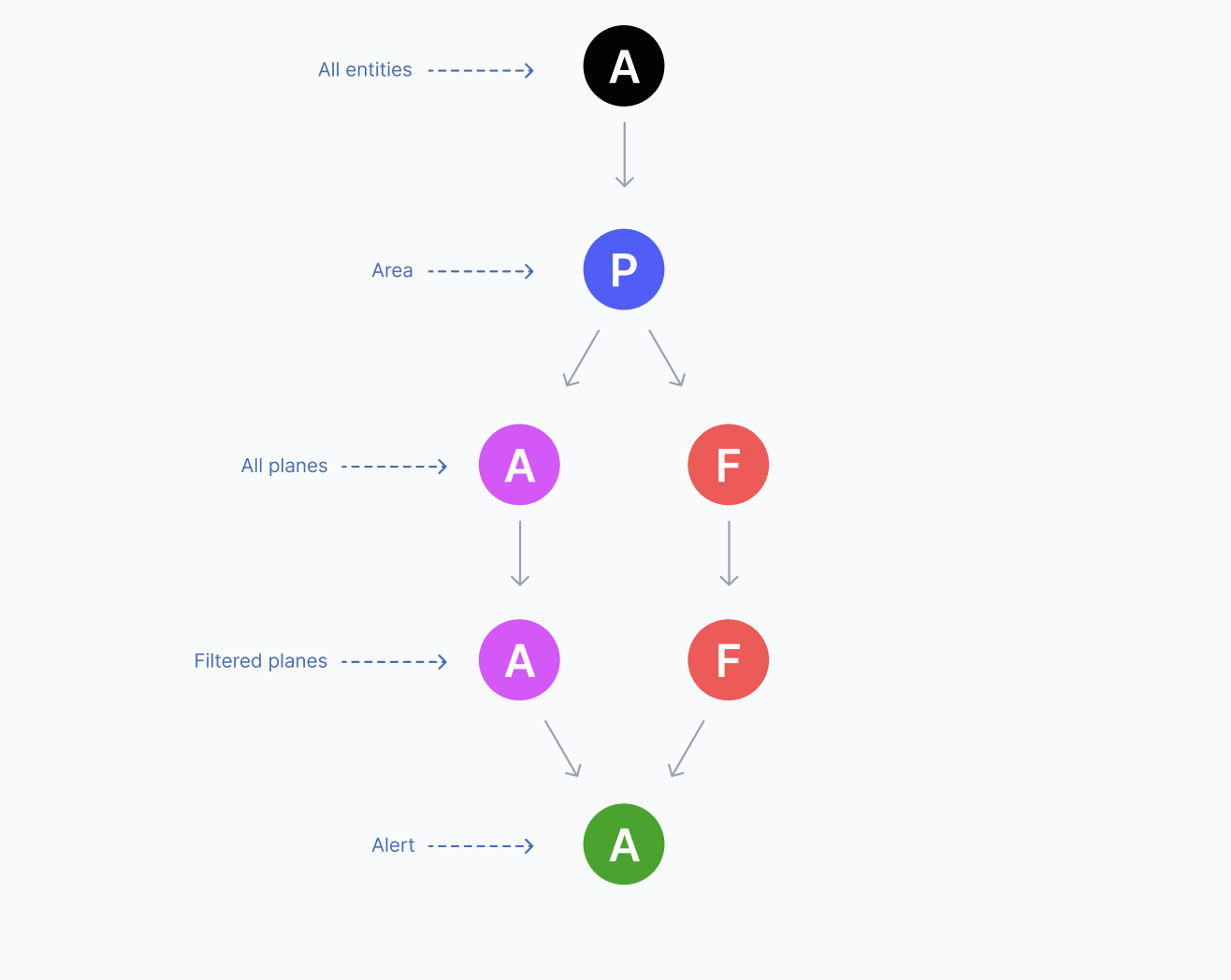
The development team received the specs but ran into a problem: they couldn't build the central entity-search screen within the project's timeline.
Later, one of the developers suggested an open-source library that could solve it, but with limits on how the system would work. It supported filtering, not search. The conditions would depend on each other and on the order they appear in.
That meant adapting the solution and rethinking the design.
What the developers proposed. Each node narrows the one before it: all entities, then an area, then planes, then filtered planes, then an alert. Right-clicking a node opens a filter window (if it has one), and conditions inside it can only be joined with OR.My solution
Making a filter graph readable
I kept the library's node-based model and redesigned what it shows and how operators work with it.
The nodes
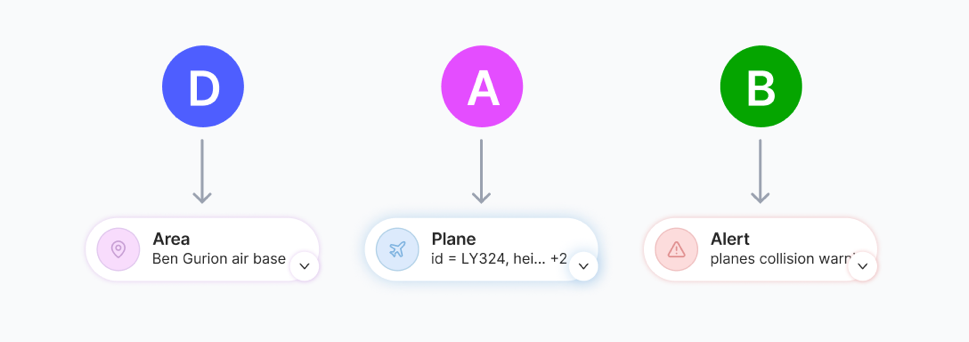
The original nodes were circles with random colors and letters. I changed them to an oval shape that shows what the node contains from the outside, with a matching icon and one fixed color for each node type.
Before and after. Above, the original letter circles. Below, the redesigned nodes: you can read "Area: Ben Gurion air base" without opening anything.
Filter node windows
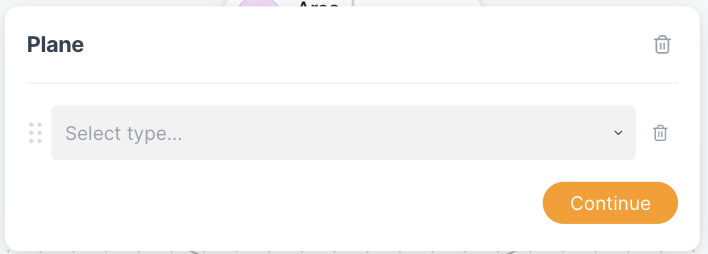
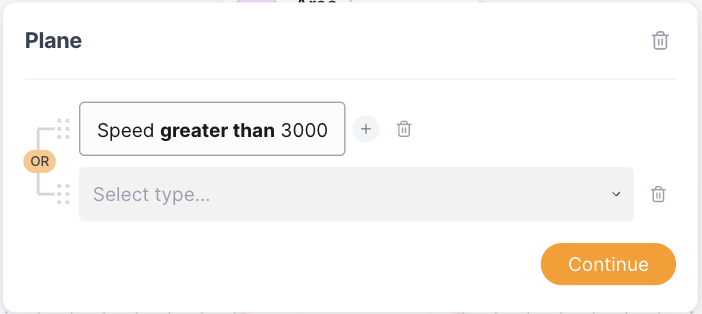
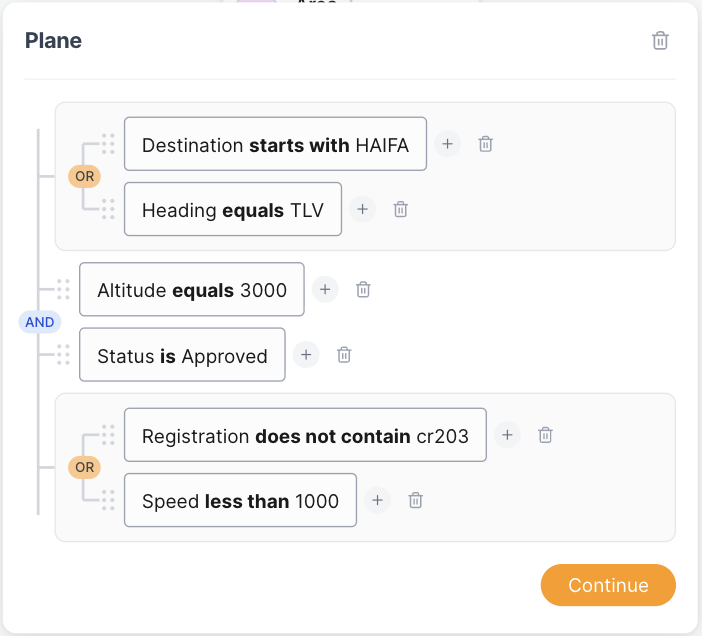
Double-clicking a filter node opens a window for choosing limiting conditions and the relation between them (OR / AND). Step through how an operator builds a condition:
Adding a relation. Choosing OR adds a new condition row, grouped with the first.
A complex filter. OR groups nested inside an AND, readable as one sentence per line.
Information nodes
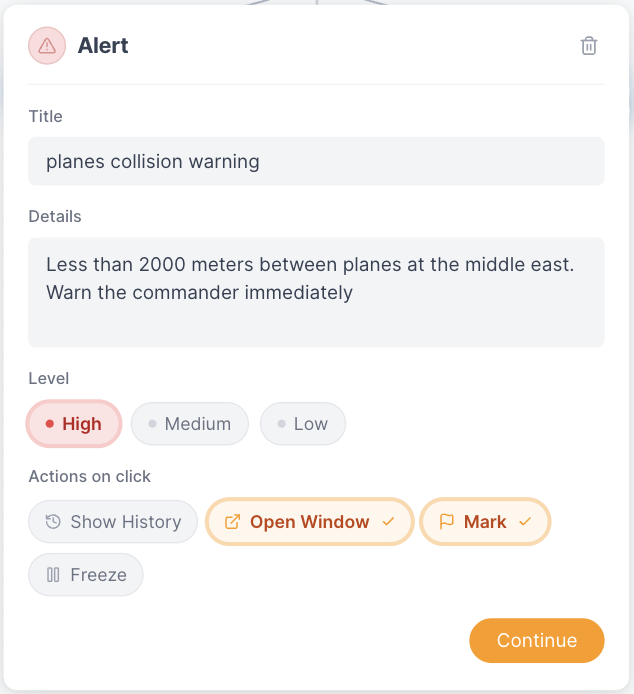
Double-clicking an information node, such as an alert or an action, opens a window for its details: a title, a description, a priority level, and the automated actions that run when the alert is clicked.
Alert node. Priority and follow-up actions live in the same window, so the alert and its response are defined together.
Adding a node
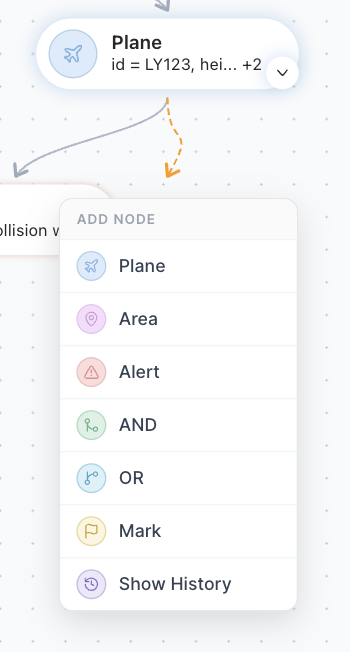
To add a node, the operator clicks the arrow next to the node it should come from and picks the type of node to create.
Add node menu. Entities, logic and actions, each with the same icon and color it carries on the canvas.Putting it together
Creating a rule
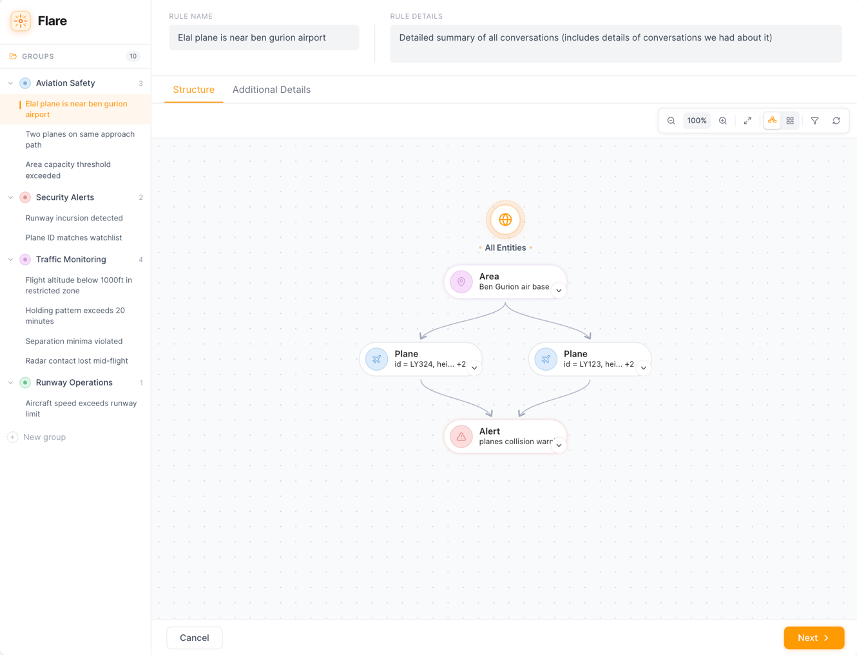
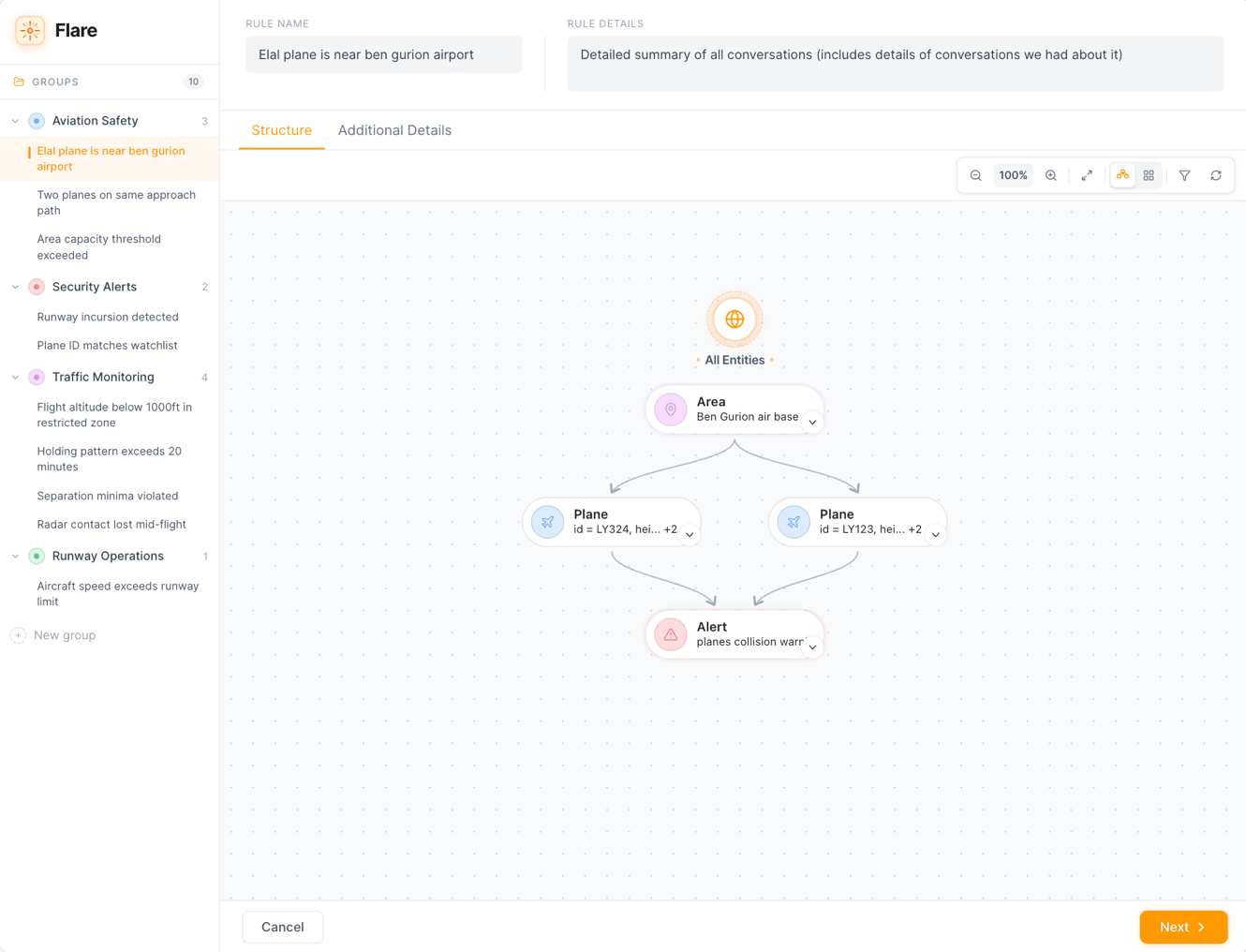
Building a rule happens in two stages: first the nodes, then the extra details about the rule.
Stage one: the structure
Structure tab. Rules are organized in groups on the left; the node graph is built on the canvas.
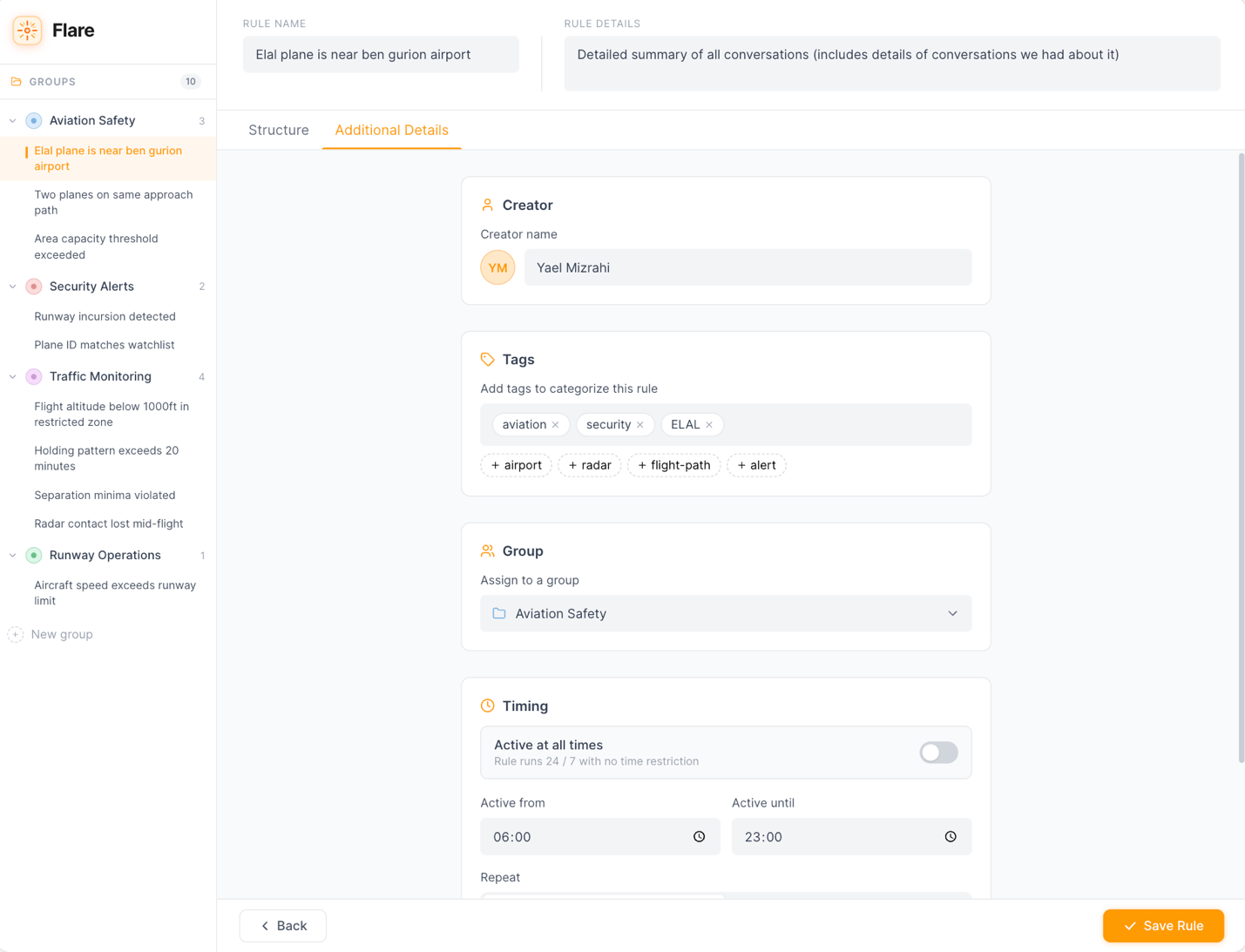
Stage two: rule details
The details: who created the rule, relevant tags, the group it belongs to, and its schedule.
Additional details tab. Creator, tags, group and timing.
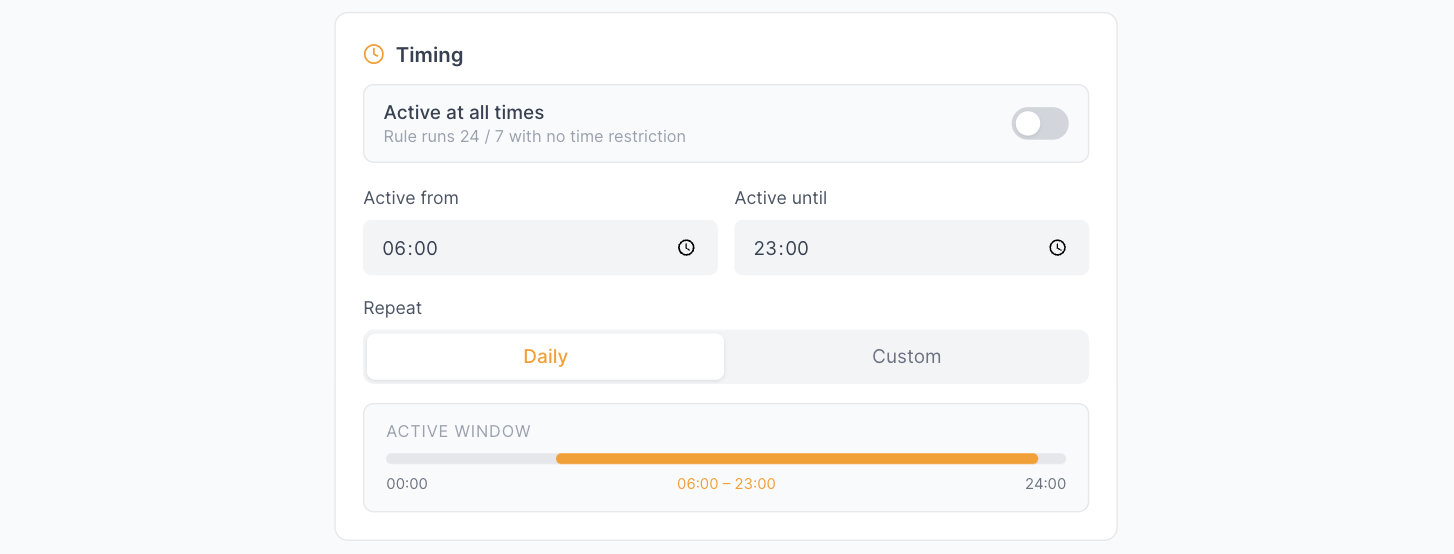
Scheduling lets a rule run only during certain hours or days. That makes alerts more precise and cuts down false alarms.
Custom schedule. Active hours with a daily or custom repeat, and a bar that shows the active window at a glance.
Always on. One switch for rules that should run 24/7 with no time limits.Connecting to the operational system
Switching rules on and off, mid-shift
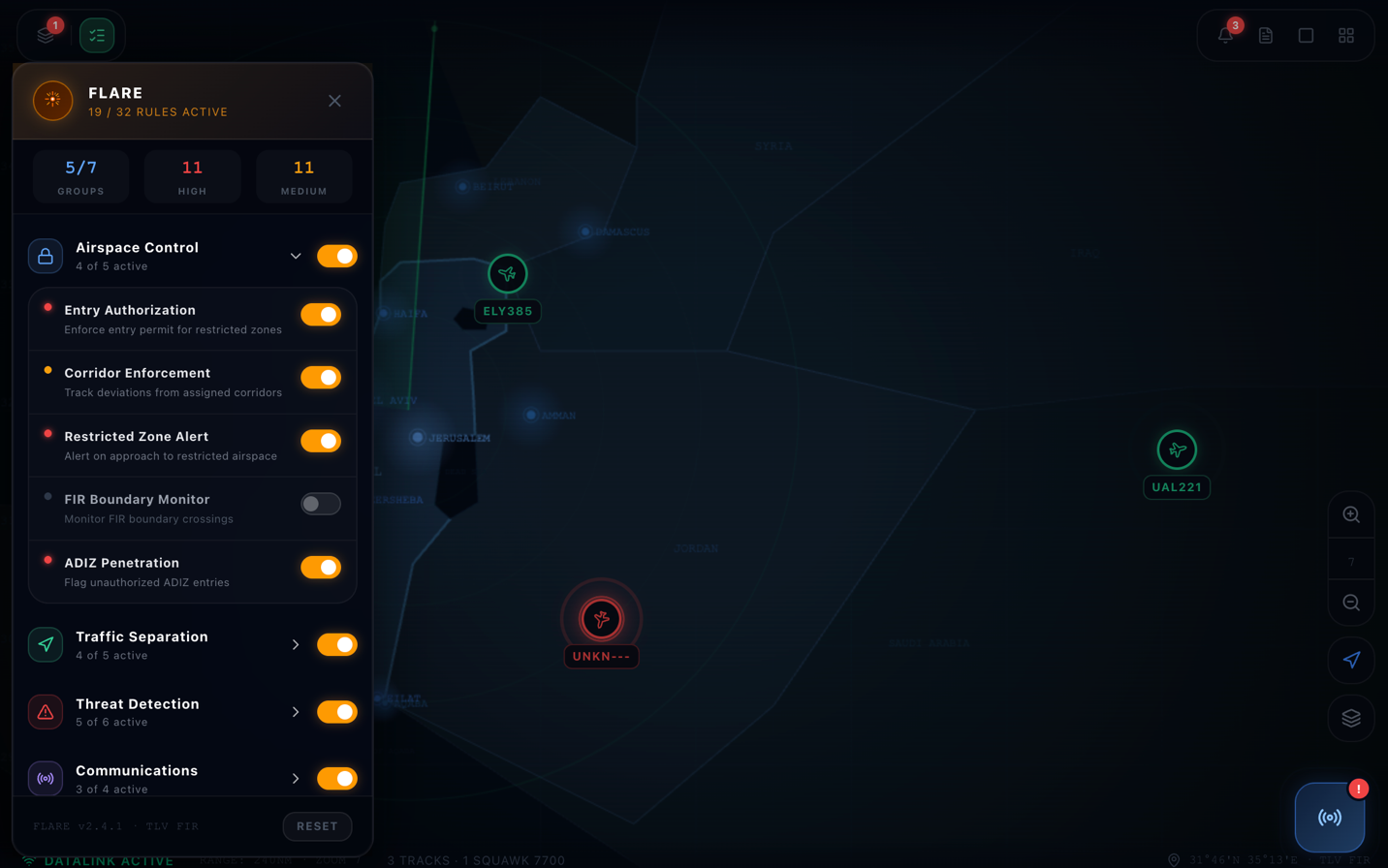
Flare is connected to the operational system, and rules run through it. So I added a side panel inside Starlight where operators turn rules on and off without leaving the map.
Flare inside Starlight. Rule groups with live toggles and counts of active rules, docked next to the airspace picture.